
 AnalyticsWordPress plugin · Free
Indigothorn Content Decay
Which posts are losing Google clicks, and why. From your own Search Console numbers.
Old posts quietly lose traffic. See the ones that lost the most, with the likely cause and a checklist.
Specification
- Price
- Free, GPL
- Version
- 0.1.0
- Requires
- WordPress 6.5+, PHP 8.1+
- Tested up to
- WordPress 7.1
- Instead of
- Spreadsheet audits
- AI
- Optional, your provider
- Key number
- 10,000 pages imported in under 1 s
See the idea work, right here.
A small working preview of what the plugin does, on sample data, in your browser. Nothing is sent anywhere.
Last 28 days vs the 28 before (sample site)
Diagnosis · 3 to look at
Data comes from Site Kit or a Search Console CSV export; 10,000 pages import in under a second. AI explanations are optional.
Indigothorn Content Decay vs the alternatives.
Measured in our lab with the same data where there is a number; features from each plugin’s own page otherwise.
| Feature | Indigothorn Content DecayIndigothorn · free | Site Kit by Google5M installs | Paid SEO suitese.g. AIOSEO Pro |
|---|---|---|---|
| List of pages losing clicks | Yes | No | Yes |
| Why: position, CTR, season, demand, lost queries | Yes | No | Partly |
| Works from Site Kit or a CSV, no extra Google login | Yes | — | No |
| Seasonal check against last year | Yes | No | — |
| Price | Free | Free | Paid |
Site Kit shows the numbers; Indigothorn Content Decay reads them and explains the drops. 10,000 pages import in under a second. “—” means not applicable or not checked.
The free plugin is complete. Pro adds the heavy lifting.
Proposed price, not on sale yet: $39 / year. $39 / year.
- Weekly decay report by email
- AI explanations without your own key
- Refresh brief for each declining post
What you get.
What it does
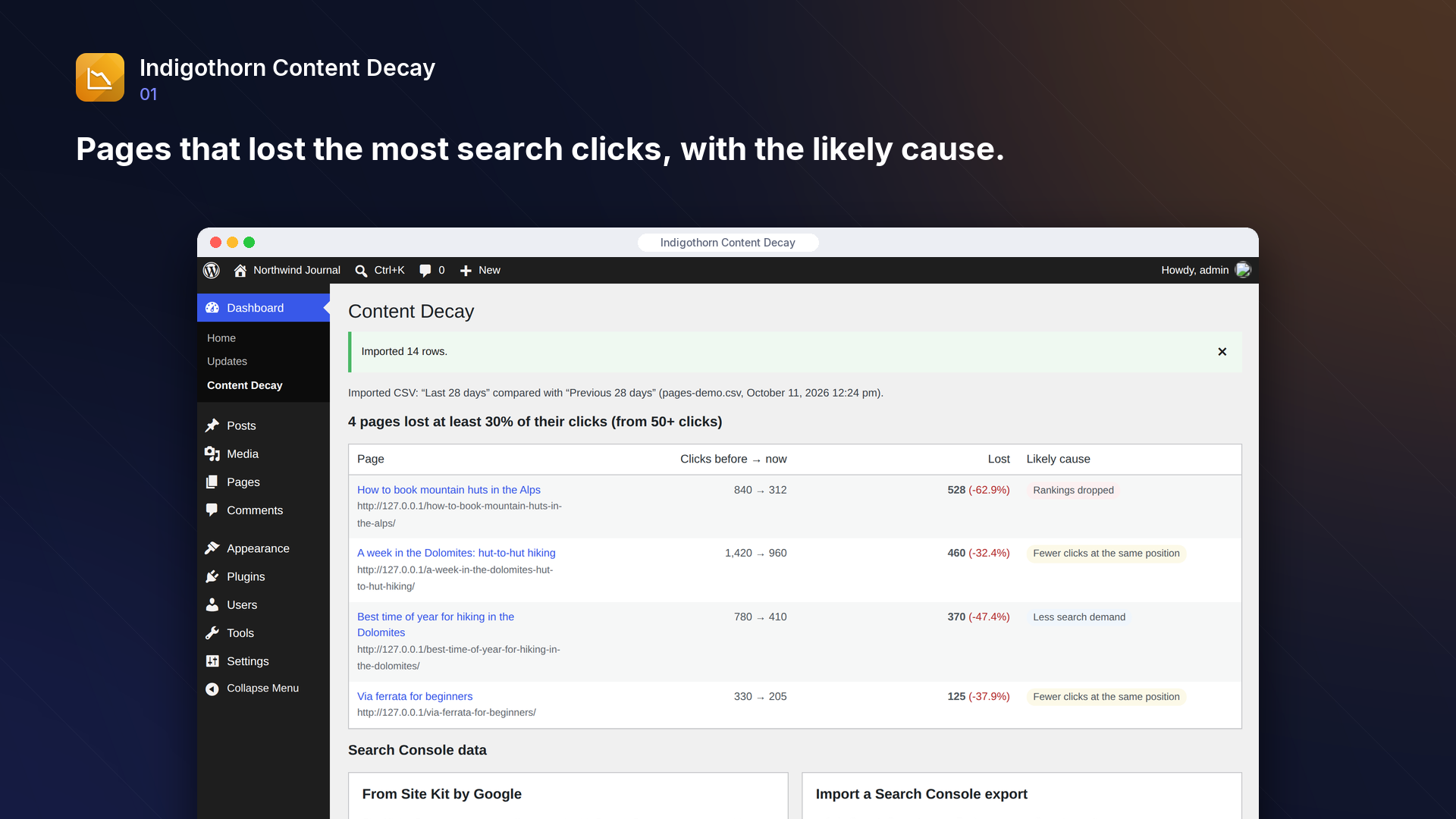
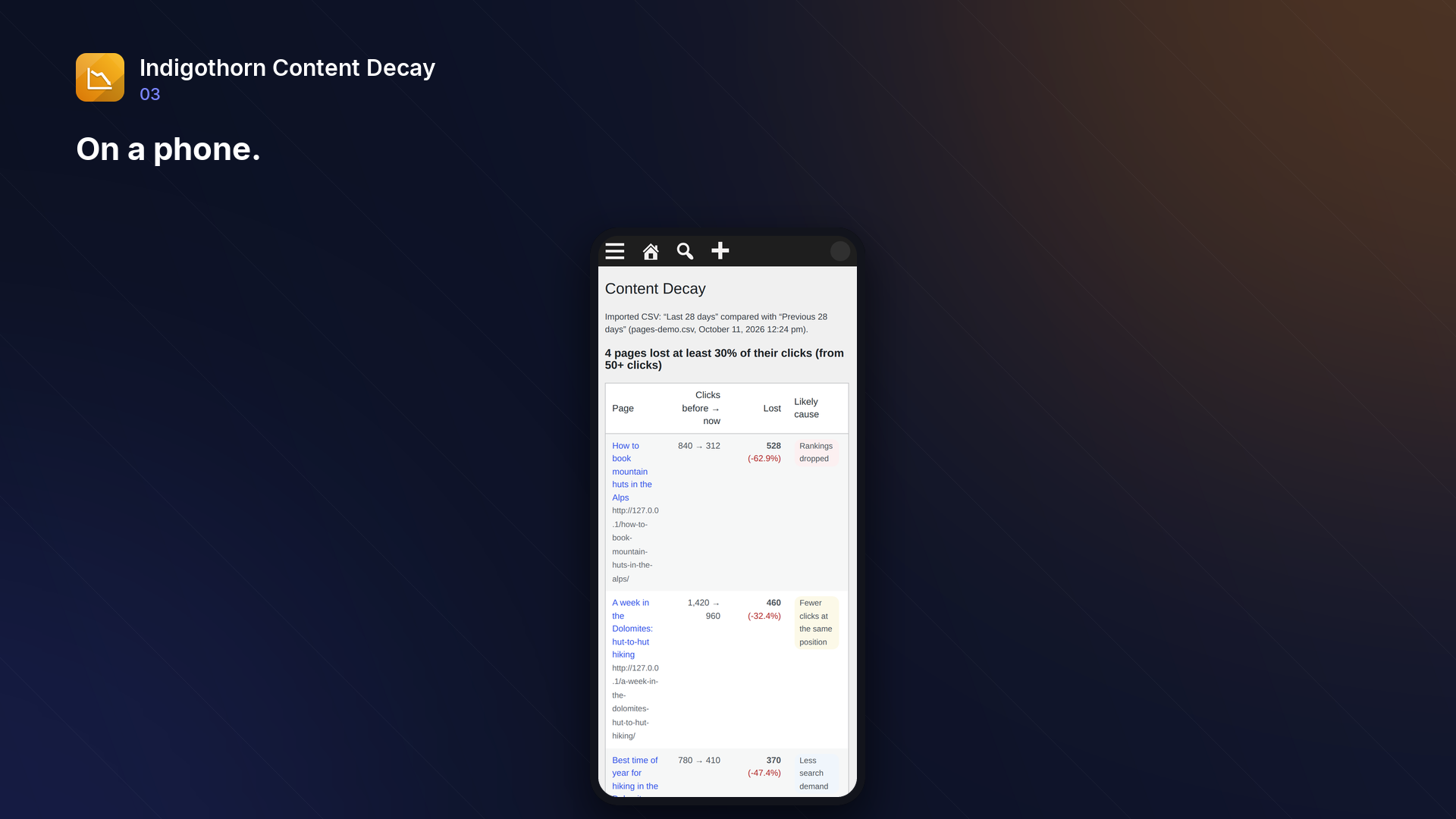
Old posts quietly lose traffic. Indigothorn Content Decay compares your Google Search Console numbers for the last 28 days with the 28 days before (and with the same weeks a year ago) and lists the pages that lost the most clicks.
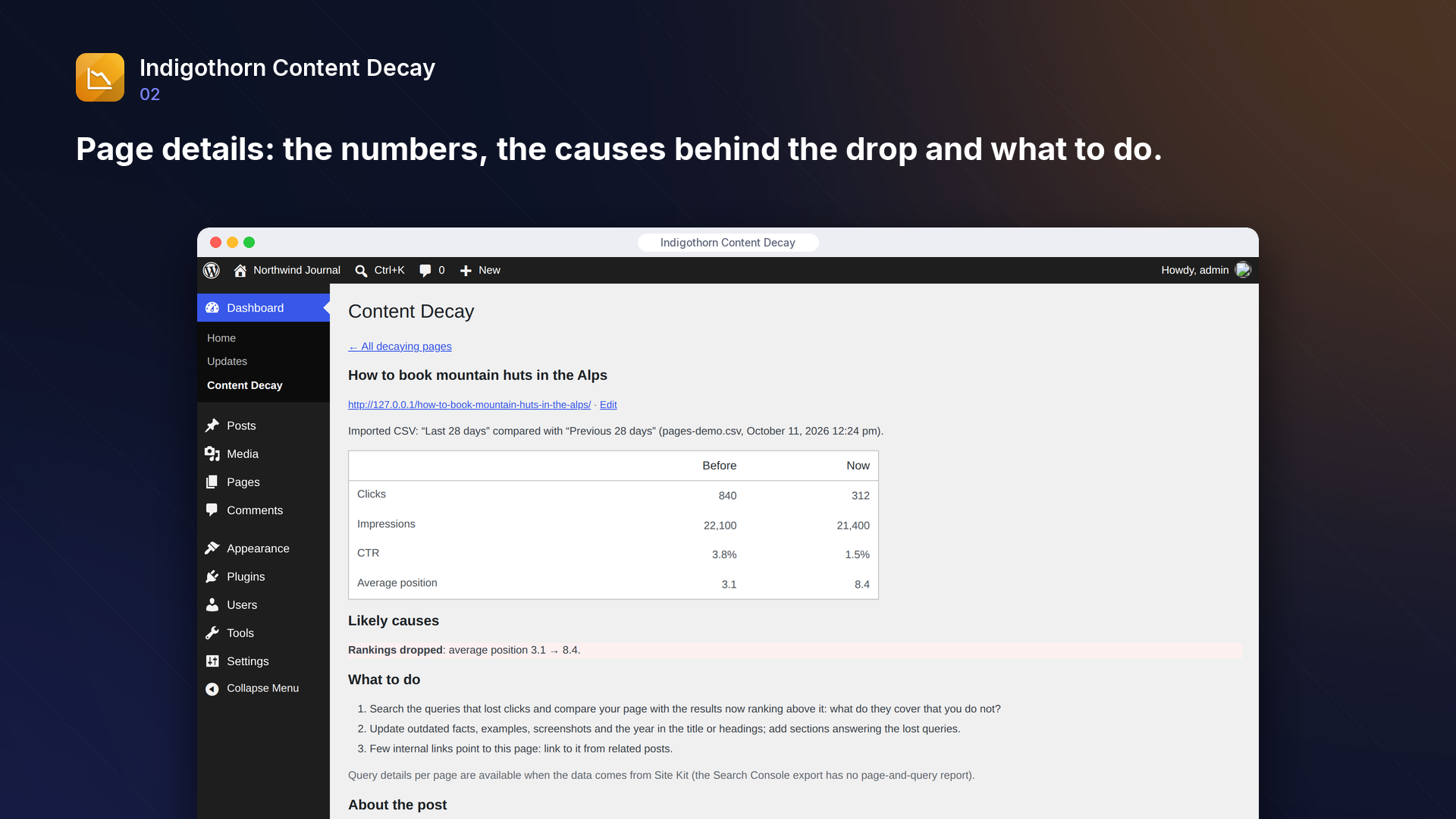
For every page it shows why the clicks went away, based only on your numbers:
- Rankings dropped: the queries that brought clicks now rank lower.
- Fewer clicks at the same position: your snippet gets clicked less (new results features, a weaker title).
- Seasonal dip or less search demand: fewer people search, your position held.
- Lost queries: the page no longer shows up at all for some searches.
- Edited recently: the page changed shortly before or during the drop.
…and a short checklist of what to do about it.
Clicks over time
Every import and every Site Kit refresh is kept as a snapshot of the page totals, so the page details show how its clicks moved across your imports (a small chart and the numbers per period). Importing the same weeks again replaces that snapshot instead of adding a duplicate, and only periods of the same length are compared. Up to 60 snapshots from the last three years are kept.
In your post lists and the editor
Posts and pages get a "Search clicks" column with the change since the previous period; pages losing clicks beyond your thresholds are highlighted and link straight to their details. The edit screen of such a post shows the same numbers in a small box. Both are visible only to people who can open the report (editors and administrators), and only for posts they can edit.
Where the data comes from
- Site Kit by Google: if you already use Site Kit with Search Console connected, click "Load data from Site Kit". No extra Google login, and the plugin can refresh weekly.
- Search Console export: in Search Console, open Performance, choose Date → Compare, open the Pages tab and download the CSV or ZIP, then import it. Nothing connects to Google.
Optional AI explanation
On WordPress 7.0+, with an AI provider set up under Settings → Connectors, you can turn on a short AI explanation on the page details. Only the numbers shown on that screen, the page URL and its title are sent to your provider. Answers that mention numbers not present in your data are discarded.
Fast on big sites
With a Search Console export covering 10,000 pages, the import takes under a second, the list of decaying pages opens in about 45 ms and the details of 25 pages in about 35 ms.
Inside WordPress.
How we checked it.
Automated on every release in an offline lab. The numbers are copied from the latest runs.
automated tests: 36 unit and integration, 10 in a real browser
full regression on WordPress 7.1, 6.5 and multisite (2026-10-15)
Plugin Check errors and warnings, including experimental checks
issues found by independent code reviews and fixed, each with a regression test
automated WCAG 2.1 A/AA check of every screen, no serious issues
PHP versions in static analysis and coding standards, both clean
Performance10,003 published posts
- import a Search Console export with 10003 pages: 0.4 s, peak memory 115 MB
- decaying pages list (3904 pages): 44 ms, 4 queries
- first page of the report (25 diagnoses): 35 ms, 55 queries
AI is your choice, and your provider.
How it works
Compares clicks period over period and with the same weeks last year, from Site Kit or a CSV export.
AI
Optional: explains a drop in plain words, on click.
What leaves your site
Optional: Search Console data through the Site Kit plugin. AI only if you switch it on.
Common questions.
Why does a post show "—" in the Search clicks column?
The post is not in the imported data: it had no clicks in either period, or its address in Search Console differs from its permalink (for example after a slug change). Addresses are compared without "http/https", "www." and the trailing slash.
Does the plugin connect to Google itself?
No. It reads data from Site Kit (which you connected yourself) or from a file you import.
Why do I not see queries for each page with a CSV import?
The Search Console export does not contain a page-and-query report. Use the Site Kit source for query details.
Why does the trend show only two points?
One import holds two periods (the last 28 days and the 28 days before), so it gives the first two points. Every later import or weekly Site Kit refresh adds one more. A "–" means the page was not in that export, for example because it was below the export's row limit.
Who can see the report?
Editors and administrators. Settings and imports are for administrators.
What happens to my data when I delete the plugin?
The imported numbers, the snapshot history, settings and the weekly refresh are removed unless you tick "Keep imported data when the plugin is deleted". Your posts are never changed.
Installation
1. Install and activate the plugin. It appears under Dashboard → Content Decay.
2. If you use Site Kit by Google with Search Console connected, click "Load data from Site Kit". Otherwise export the Pages report from Search Console (Date → Compare) and import the file.
3. Open a page from the list to see the numbers, the likely causes and what to do.
Works well with.
Indigothorn Table of Contents
A table of contents with zero JavaScript. Your LuckyWP links stay the same.
Indigothorn Related Posts
Related posts that understand your content. YARPP migration in one click.
Indigothorn Link Checker
Find broken links without slowing your site. Fix them in one click.