
 MediaWordPress plugin · Free
Tagwell Media Organizer
Search images by what is in them. Folders without ever moving a file.
“beach”, “red car”, “team photo”: find any image in the library. You see the cost before AI runs.
Specification
- Price
- Free, GPL
- Version
- 0.1.0
- Requires
- WordPress 6.5+, PHP 8.1+
- Tested up to
- WordPress 7.1
- Instead of
- FileBird, Real Media Library
- AI
- For tagging, your provider
- Key number
- +30 ms search on 5,000 images
See the idea work, right here.
A small working preview of what the plugin does, on sample data, in your browser. Nothing is sent anywhere.
2 of 12 images match
Folder rules
Cost before you start
Tags come from the AI provider you set up in WordPress (Settings → Connectors). Folders and rules work without it.
Tagwell Media Organizer vs the alternatives.
Measured in our lab with the same data where there is a number; features from each plugin’s own page otherwise.
| Feature | Tagwell Media OrganizerIndigothorn · free | FileBird200k installs | Real Media Library100k installs |
|---|---|---|---|
| Search images by what is in them | Yes | No | No |
| Folders | Yes | Yes | Yes |
| Rules: tag “beach” → folder “Holidays” | Yes | No | No |
| Alt text for images without one | Yes | No | No |
| Cost estimate before AI runs | Yes | — | — |
| Files and URLs never change | Yes | Yes | Yes |
Searching by AI tags adds about 30 ms on a library of 5,000 tagged images. “—” means not applicable or not checked.
The free plugin is complete. Pro adds the heavy lifting.
Proposed price, not on sale yet: $29 / year. $29 / year with 5,000 images tagged · +10,000 images for $5.
- Image tagging by our model, no AI key needed
- Cost known upfront, images never tagged twice
What you get.
What it does
- AI tags and descriptions: for every image, 3–8 tags and a one-sentence description, written by the AI provider you set up in WordPress (Settings → Connectors, WordPress 7.0+).
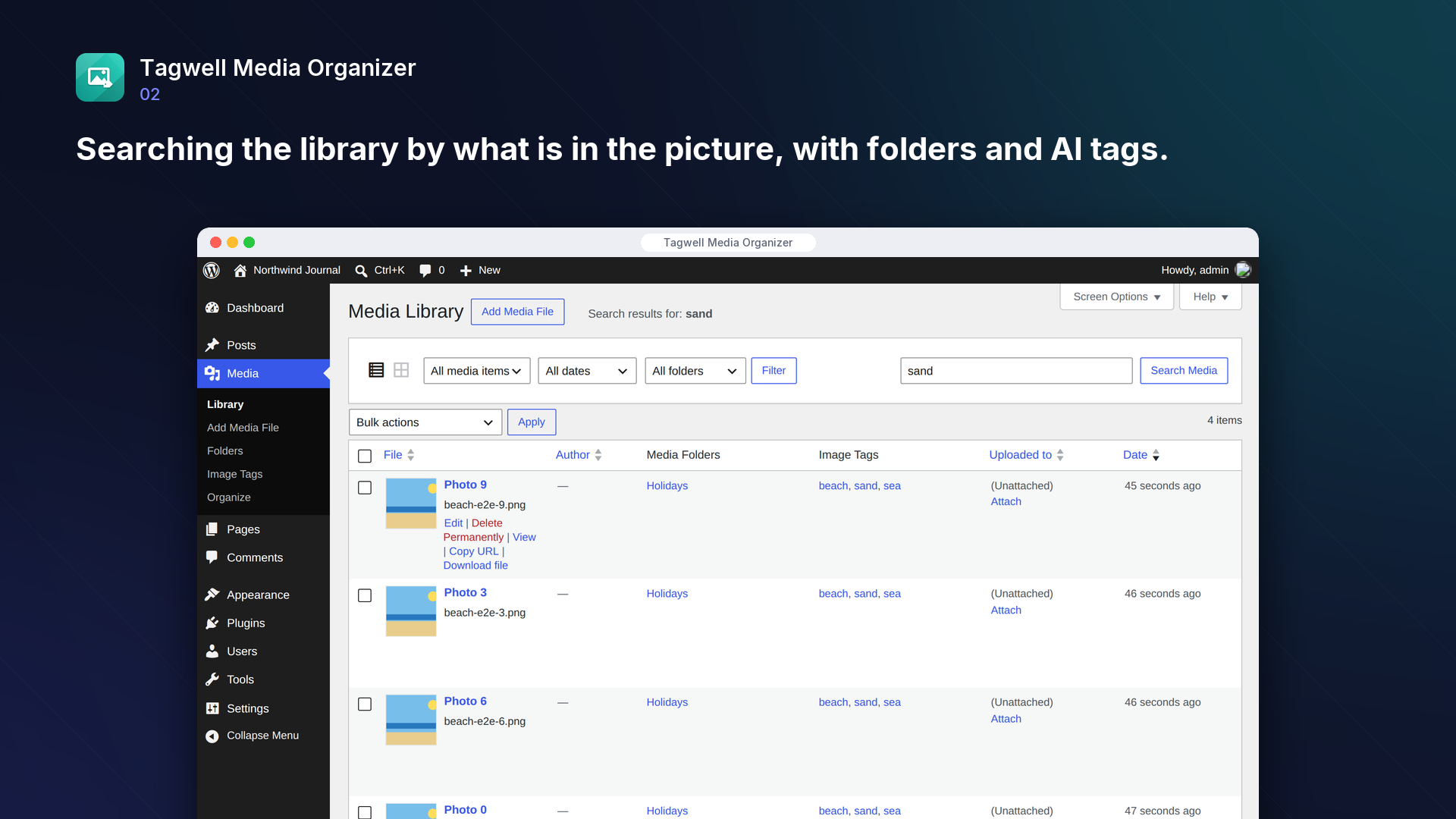
- Search by what is in the picture: the media library search also finds images by their tags and descriptions ("beach", "red car", "team photo").
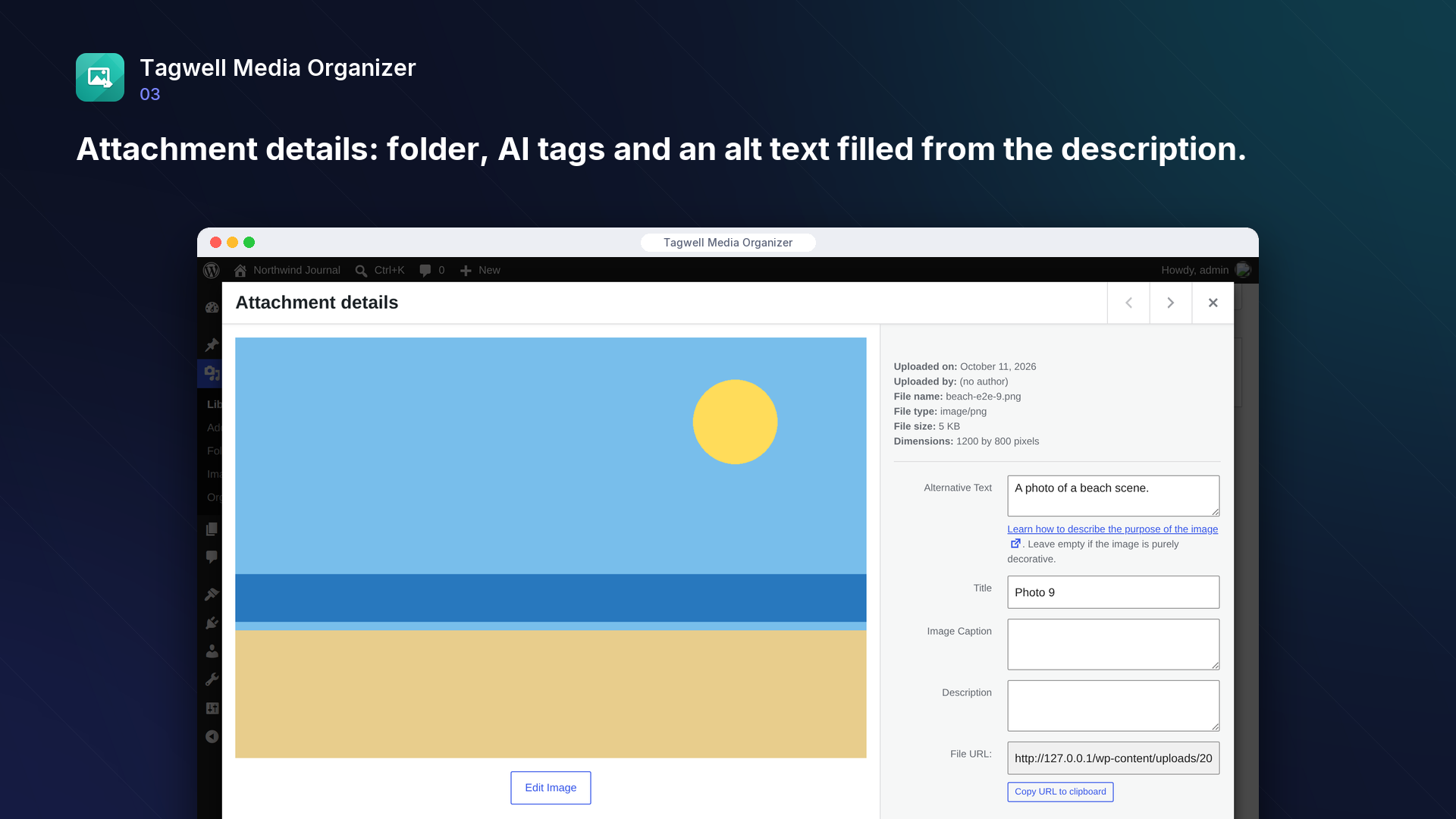
- Alt text for images that have none, from the description (optional; existing alt texts are never changed).
- Rules: "when an image gets the tag *beach*, put it in the *Holidays* folder".
- Virtual folders: filter the library (grid and list) by folder, set the folder in the attachment details, move many files at once. Folders are labels: files on disk are never moved or renamed, and URLs never change.
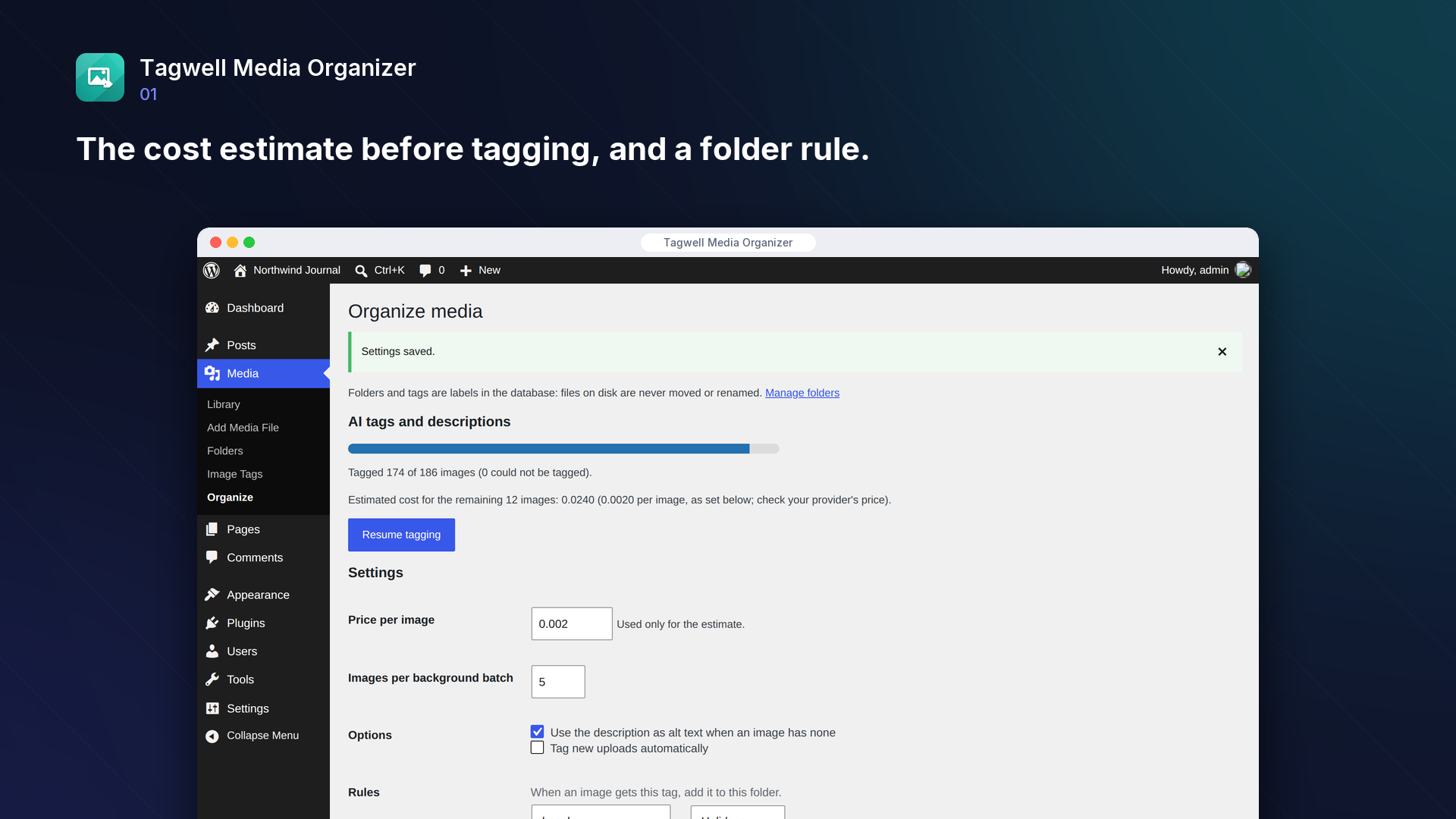
- Before you start, you see the cost: number of images × the price per image you enter. Tagging runs in the background in small batches; you can pause and resume, and images already tagged are never sent again.
Light
Searching by AI tags and descriptions adds about 30 ms to the media library search on a site with 5,000 tagged images. Tagging runs in the background in small batches.
Inside WordPress.
How we checked it.
Automated on every release in an offline lab. The numbers are copied from the latest runs.
automated tests: 14 unit and integration, 7 in a real browser
full regression on WordPress 7.1, 6.5 and multisite (2026-10-15)
Plugin Check errors and warnings, including experimental checks
issues found by independent code reviews and fixed, each with a regression test
automated WCAG 2.1 A/AA check of every screen, no serious issues
PHP versions in static analysis and coding standards, both clean
Performance10,003 published posts
- media library search in 5001 attachments (tags, descriptions, titles): median 203 ms, max 213 ms (e.g. "beach": 1000 results)
AI is your choice, and your provider.
How it works
Virtual folders and rules work without AI. Files never move, URLs never change.
AI
Needed for tags and descriptions: each image goes to the AI provider you set up in WordPress.
What leaves your site
Only while tagging: the medium-size image goes to your AI provider. You see the cost first.
Common questions.
Do I need an AI provider?
For tags and descriptions, yes (WordPress 7.0+ with a provider that can read images). Folders, rules and search work without one.
What happens to my files if I delete the plugin?
Nothing. Files and attachments stay exactly where they are. Folders, tags and descriptions are removed unless you choose to keep them; alt texts that were filled in stay.
Can I stop it from spending money?
Yes. Nothing is sent until you click "Start tagging" (or switch on tagging of new uploads), you see the estimated cost first, and "Pause" stops it at once. A paused queue stays paused even when new images are uploaded.
Who can use folders?
Anyone who can upload files can filter by folder and move their files. The settings and AI tagging are for administrators.
Installation
1. Install and activate the plugin. Folders appear under Media → Folders.
2. For AI tags, set up an AI provider that can read images under Settings → Connectors (WordPress 7.0+).
3. Go to Media → Organize, enter your provider's price per image to see the estimate, add folder rules if you like, and click "Start tagging".
Works well with.
Indigothorn Table of Contents
A table of contents with zero JavaScript. Your LuckyWP links stay the same.
Indigothorn Related Posts
Related posts that understand your content. YARPP migration in one click.
Indigothorn Link Checker
Find broken links without slowing your site. Fix them in one click.